If you don't find the answer here, please contact me by mail (dje073@gmail.com).
Thank you for using RecForge.
This is a beta version of RecForge II. It may have bugs, so use it with caution.
Please don't rate it on the Play store until I can fix bugs and upload a stable version.
RecForge II is a powerfull dictaphone and audio editor for Android.
It allows to Record, Play, Edit and Share sounds, voices, notes, musics or any other audio media.
- Record meetings, rehersals, music learning, EVP, ...
- Play and use the loop feature for memorization, actor lines, bible memory, recitations, ...
- Edit your audio files for ringtones, commentary, ...
- Archive it using cloud storage services or share it with your friends by mail, social networks, ...
Main features :
- Real-time record in mp3, ogg, wma, opus, flac and wav
- Play, record, pause / resume, loop, convert, edit, concat, merge audio files
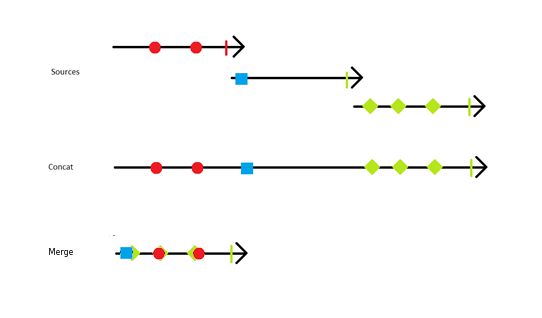
- Time stretching with playing rate, tone and pitch adjustment
- Schedule recordings
- Skip silence (with threshold)
- Visualize audio signal (the only application on the Play store to display the right and left channels for stereo files)
- Edit your recording to keep only interesting parts or make basic arrangement
- Tag your recordings and edit metadata
- Share your recordings
- Convert your files "from" and "to" all available audio format (mp3, ogg, wma, opus, flac and wav) with all desired settings (sample rate, bite rate, mono/stereo, ...)
- Choose your input (front microphone or back microphone)
- Use external microphone (3.5 jack : works with RØDE smartLav+, iRig Mic, iRig Cast or iRig Pre microphones or requires a TRRS adapter. cf FAQ)
- Record in background even when the phone is locked
- Hide notifications to discretly record
- Powerfull file manager (rename, delete, copy, move, sort files...)
- Different widgets size (one click to record)
- Control RecForge from the notification bar
- Supported audio format :
- 8, 11, 12, 16, 22, 24, 32, 44 and 48kHz
- mp3, ogg, wma, opus, flac and wav
- from 32 to 320 kbps
- mono / stereo (mono x2) / "true stereo" (cf supported devices)
- 16bits
- Disable AGC (Automatic Gain Control) for better audio quality
- Manual gain adjustment
- Language translations :
- Arabic,
- Catalan,
- English,
- Finnish,
- French,
- German,
- Hungarian,
- Italian,
- Polish,
- Portuguese,
- Russian,
- Simplified Chinese,
- Spanish,
- Traditional Chinese,
- Turkich.
Can I record phone conversations ?
RecForge cannot record phone conversations on most smartphones. But, you can test it as some few devices may be able to do it.
More generaly, this feature is not officially supported by Android.
Change the default RecForge directory
RecForge records in the last browsed folder (it keeps it in memory even when RecForge is closed).
By default, you only have access to the RecForge folder (usualy /sdcard/RecForge).
To change this, go in the settings, choose "Limit folders browsing" and select :
- Int. SDCard - RecForge Folders : access to the internal SDCard RecForge folder only
- Int. SDCard - All Folders : access to all internal SDCard folders
- Ext. SDCard - RecForge Folders : access to the external SDCard RecForge folder only
with Android 4.4+, it's the only location of the external SDCard where you'll be able to record files
- ext. SDCard - All Folders : access to all external SDCard folders
- All Folders : access to all folders (SDCard, external SDCard, ...)
Then exit the settings and choose your prefered folder.
Record on the external SDCard
Take a look at "Change the default RecForge directory" section for a quick solution.
Since Android 4.2 :
Google has restricted the access to the External SD card so that any apps who need to read and write data files must save them on a private folder under :
- /<External SD Card alias>/Android/data/<app package name>
For RecForge II lite, if the External SD Card alias is extsdcard then that path would be /extsdcard/Android/data/dje073.android.modernrecforge.
Note that Google want that when any app is uninstalled, all files associated with it saved onto such private folder will be deleted also for a clean uninstall.
You can create this folder manually :
- /<External SD Card alias>/Android/data/dje073.android.modernrecforgepro for RecForge II Pro
- /<External SD Card alias>/Android/data/dje073.android.modernrecforge for RecForge II Lite
PS : Change accordingly to your device and RecForge version
Then in RecForge's parameters. Select "limit folders browsing" and choose "All folders".
Navigate to this folder in RecForge, and you should be able to record in it.
How can I automate a recording with tasker ?
In tasker, create a new task, and add a new action.
Select "Misc / Send Intent"
- In "action" :
dje073.android.audiowidget.WidgetAudio.ACTION_WIDGET_ACTION
- in "package" :
dje073.android.modernrecforge
- in "class" :
dje073.android.modernrecforge.widget.WidgetAudio4x1
- in "target" :
Broadcast Receiver
This first action is to launch the recording. If you call this action again, it will pause the recording, if you call it again, it will record, etc ...
For the stop action, it's the same thing except the "action" field. Set it to dje073.android.audiowidget.WidgetAudio.ACTION_WIDGET_STOP
How can I automate a recording with adb ?
- adb shell am broadcast -a dje073.android.audiowidget.WidgetAudio.ACTION_WIDGET_ACTION -n dje073.android.modernrecforge/dje073.android.modernrecforge.widget.WidgetAudio4x1
This first action is to launch the recording. If you call this action again, it will pause the recording, if you call it again, it will record, etc ...
For the stop action, it's the same thing except the "action" field. Set it to dje073.android.audiowidget.WidgetAudio.ACTION_WIDGET_STOP
- adb shell am broadcast -a dje073.android.audiowidget.WidgetAudio.ACTION_WIDGET_STOP -n dje073.android.modernrecforge/dje073.android.modernrecforge.widget.WidgetAudio4x1
Using an external Microphone
There are 3 possibilities :
- RØDE products
- iRig products
You can use an iRig microphone as a iRig Mic, iRig Pre or iRig Mic Cast
Working devices with iRig products : LG Nexus 4, Samsusng Nexus S, Samsung Galaxy S2, Samsung Galaxy S3, HTC Desire, ...
Not working : Nexus 7 (TRS jack)
- TRRS adapter
Almost every smartphone with standard 3.5mm jack are using the TRRS (4 conductor) because they need 4 signals: Audio Out Left, audio out Right, mic in and ground.

Then, because of the TRRS, you have to use an adapter to get the mic out on a seperate "channel". For exemple this kind of adapters at CableJive, Meelec, Sescom or here.
Be careful, the pinout for mic on Android can be different than the pinout on iPhone (or at least on Galaxy S, ...).


There is no specific settings to do in RecForge. Just plug the microphone and Android should handle it automatically.
Sometimes, if the microphone isn't detected (/used), just restart the application.
PS : It won't work with all devices, check that your smartphone is compatible with these materials (ask the sellers, or to other users on facebook).
List of devices supporting "True Stereo" recording mode
To enable stereo recording :
- Select Audio Record -> Disable Compatibility mode and choose "Stereo (native)"
- Select Source -> "Front microphone"
- No disabling of the AGC
On some devices, you may have to choose the Back microphone as source.
On some others, you have to disable AGC (Blackberry Z10).
| |
Supported devices |
Unsupported devices |
|
Alcatel |
Idol3
|
|
Amazon |
|
Kindle Fire HDX 7"
|
Asus |
|
Nexus 7
|
BlackBerry |
Z10
|
|
Fairphone |
FP1U
|
|
HTC |
|
Desire
One M7
One S
One XL
|
LG |
|
Nexus 4
|
Motorola |
Moto G (3rd gen)
|
|
SAMSUNG |
Galaxy Note II
Galaxy S2
Galaxy S3
Galaxy S4 (i9505)
Galaxy S4
Galaxy S6 (Back microphone)
Galaxy S7 (Back microphone)
|
Google Nexus S
|
SONY |
Xperia S
|
Ericsson LT26I
|
The result may be different depending on the ROM used.
Some devices only support stereo for built-in applications (stock video recorder app, ...).
RecForge create .recforge2 files, what is that ?
These are cache files to accelerate the wav preview. You can remove them, but RecForge need to recreate it to display waveview (it may take a long time to create)
I recorded something, but I can't find my files
RecForge records in the last browsed folders.
But if you don't know (or don't remember) where you recorded your file, you will have to search for these files with a file manager (as astro or Es File Explorer available for free on the market).
The name of the recording should be like yyyymmdd-hhmmss.format where :
- yyyy = year
- mm = month
- dd = day
- hh = hour
- mm = minuts
- ss = seconds
- format = wav/mp3/ogg/wma/opus/flac
You can limit browsing folder in the settings, so you won't record every where on your phone.
Go in "settings" and select "Limit folders browsing". Then choose "RecForge". Now you should be able to record only in /mnt/sdcard/RecForge (by default).
You can either :
- select all the files you want to save from RecForge and transfer it on a cloud storage solution (DropBox, Box, ...)
- or transfer your recordings on your computer via USB
- Connect your device to your PC with your USB cable
- Browse your recordings folders from your computer : /mnt/sdcard/RecForge (by default)
- Copy the files on your PC
If you can't see some files from the PC, but that you can see these from RecForge, restart your device or use an application to rescan your SDCard.
You don't need to back up .recforge2 files.
I deleted an important file, how can I recover it ?
First stop to use your SDCard so the file won't be overwritten. Then install Recuva (it's free).
Mount the SDCard on your PC and launch Recuva (see the help here).
Select the “Widgets” tab in your device’s application menu, then select a widget (1x1, 2x1, 3x1 or 4x1).


All widget can be resized on recent android versions.
How to add a home screen widget ?
Select the "+" (swipe the lock screen from the left) from the lock screen then select a widget (1x1, 2x1, 3x1 or 4x1).


What is the recording compatibility mode ?
44100Hz is currently the only rate that is guaranteed to work on all devices, but other rates such as 22050, 16000, and 11025 may work on some devices.
The compatibility mode force the device to record in 44100Hz and then RecForge resample the audio in the selected sample rate.
If you disable this mode, RecForge directly record at the selected sample rate and it should use less CPU. But on some devices and with some sample rate, you won't be able to record (playback a loud buzz).
If you want to record in good quality at 48000Hz and that your device support it, disable the compatibility mode.
How to disable AGC (Automatic Gain Control) ?
Set the recording source to "Front Microphone" and enable the "Disable AGC" option.
How to change audio recording format ?
- open the menu (*1)
- select settings (*2)
- then select the recording options (*3)
- and choose your prefered audio format in the codec list. You will also have to set the sample rate and the bitrate (the highest = the better, but it use more space).
Using the last version of RecForge (v1.0.0+), you have two possibilities :
- Using the preview mod
- Start the preview mod (long press on the recording button)
- adjust the gain : the sliding bar just above the timer -> (1) on the screenshot
- click on the validation button to start the new record -> (2) on the screenshot
- Starting a new record directly
- start the recording mod (press the recording button)
- go in the wav view panel (you may have to slide up or down the control panel to see it -> (1) on the screenshots)
- adjust the gain : the sliding bar just above the timer -> (2) on the screenshot
In the wav view :
- adjust the selection
- click on the option button (*1)
- then select "Loop on Selection" and enable it (*2)
RecForge's wav view commands
Here is a screenshot of RecForge II with different zones :

Zone 1 :
- Long click : set the start of the selection.
Zone 2 :
- Long click : set the end of the selection.
Zone 3 :
- Long click : set a new tag (you can move it as long as you don't release the click).
On all zones :
- Simple click : move the current position (seek).
- Double click on a tag to edit its label.
- Long click on a tag to move it (you can delete it by dragging it at the bottom of the screen).
Playback plays sound at double or triple speed as if the pitch has been turned up
First, Check that you reset the playing speed setting (as it is a persistant setting)
Then, either the stereo mode or the sample rate you use is not correctly supported on your device. Try to update your settings (mono/stereo, sample rate).
For example :
- On X10 mini, only 8 kHz and sometimes 48 kHz are supported.
- On X10, only 8 kHz, 16 kHz, 44 kHz and 48 kHz are supported.
- On Samsung Nexus, "Stereo (native)" isn't supported, use "Stereo (mono x2)" instead.
I can’t find my files when I connect my phone to my computer
It sometimes happens with devices using MTP. Just restart you device, or use an application to force the rescan of your SDCard.
It doesn't record when the screen is off
If it stops recording (or records silence) when he screen goes off, you'll have to enable the "Prevent phone from sleeping" option in the settings.
This happens, because your device turns off the microphone when the screen goes off.
The option will force the screen to remains on while recording. With this option enabled, you can try to switch the screen off manually : it sometimes works.
Error 504 when updating the application

Quick solution : In most case, un-installing and re-installing the application should fix it. Else,you can find more information on the 504 error below.
504 Gateway Timeout
The server was acting as a gateway or proxy and did not receive a timely response from the upstream server.
Possible solutions are :
Method 1:
- un-installing and re-installing the application
Method 2:
- clear data
- clear cache of google play store & google service framework
Method 3:
- remove your gmail account
- reboot
- Re-add account
Problems with clean master
"RecForge stops at startup", "Recforge get killed after x minutes" or "I lost all my recordings after a system update"(*)
Most of the time, it means that you use a task killer or a cleaner application.
Another possibility is that in order to squeeze a little extra battery out of your phone, Android OEMs listed on this site break apps and make your phone less capable.
You can find some usefull information on dontkillmyapp.com to bypass these limitations.
Ccleaner, Clean master, ... please just don't use them, these apps are harmful if you don't set them up correctly (exceptions, white list, ...).
Here are some links that explains why :
Why You shouldn’t use a task killer on Android
Android apps you should remove right now
Is the Clean Master app for Android really useful ?
(*) Cleaners consider a lot of files as junk files and delete them periodically (as audio recordings).
I don't provide more support about it, please contact the cleaner or task killer app editor (or better, remove these apps from your device).
Thanks for your understanding.
 Can I record phone conversations ?


